Krita Brushes
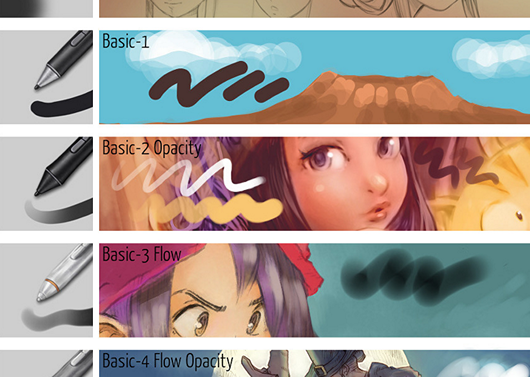
Krita brushes are the heart of the program — nine brush engines drive more than a hundred ready-made presets, from natural pencils and watercolour to inking and texture brushes, and you can import free brush packs or build your own.
Where many free tools give you a handful of round brushes, Krita ships with a serious painting toolkit out of the box. Because it is free and open-source, the whole set — and every brush pack the community makes — costs nothing.
Nine brush engines
Every Krita brush is powered by one of nine engines, and each engine behaves in a fundamentally different way. That is what lets a single program feel like pencils, ink, oils, spray and texture stamps all at once.
- Pixel and colour smudge: the workhorses for painting and blending.
- Shape and sketch: expressive line work and gesture drawing.
- Filter and clone: apply effects or paint from a source.
- Particle, spray and grid: texture, scatter and pattern effects.
Each engine exposes its own settings in the brush editor, so a preset is really a saved configuration you can tweak endlessly. It all comes with the free Krita download, and the FAQ explains the tablet and pressure support that makes the brushes shine.
Default presets and the stabiliser
Krita includes well over a hundred professionally made presets, grouped by purpose — painting, inking, sketching, texture and effects — so you have a usable set from the first launch. The brush stabiliser then smooths your strokes, with three modes ranging from a light drag to a strong pull that turns even a shaky hand into clean lines. It is one of the features artists moving from other programs notice first.
Adding free brush packs
Beyond the defaults, the community shares a huge amount of free brush packs. Importing them is quick through the Resource Manager: download a bundle, import the file, and the new brushes appear alongside the built-in ones. You can also create presets from scratch or modify existing ones and save them to your own tags.
- Resource Manager: import brush packs, patterns and palettes in a few clicks.
- Custom presets: tweak any brush and save it with your own name and tag.
- Tagging: organise brushes into groups so you can find them fast.
All of this comes with the free Krita download. For the wider toolkit around the brushes — layers, animation and colour — see the feature guide.
Painting, inking and texture brushes
It helps to think of the presets in three broad groups. Painting brushes lay down colour and blend it, from soft airbrushes to bristly oils and watercolour that mixes on the canvas. Inking brushes give crisp, controllable lines for line art and comics, and pair well with the stabiliser for smooth curves. Texture and effect brushes stamp patterns, add grain, scatter particles or build foliage and clouds in a few strokes. Most artists end up with a small set of favourites from each group, saved to their own tags for quick access.
Tips for choosing a brush
- Start with the defaults: the built-in set covers almost everything a beginner needs.
- Use tags: group your go-to brushes so you are not hunting through hundreds.
- Tweak, do not collect: adjusting one good brush often beats installing dozens.
- Match the engine to the job: colour smudge for painting, pixel for inking, spray for texture.
Once you have a set you like, the same brushes carry straight into frame-by-frame animation — one more reason the brush engine matters so much in Krita.
Common questions
How many brushes does Krita include?
Krita ships with more than a hundred professionally made brush presets across nine brush engines, covering painting, inking, texture and special effects.
Can I add more Krita brushes?
Yes. You can import free brush packs through the Resource Manager, and create or tweak your own presets in the brush editor.